

 Example
New · Images, GIFs & SVGs
Free Online GPT Image 2.6 AI Generator
Describe a picture in plain words, or upload a photo and say what to change. Make a still image, a looping GIF, an SVG logo, or a sticker with no background.
Sign up for free starter credits. Each generation uses credits, and the cost is shown before you start.
Image AI
Prompt
0/1000
My Creations
ManageExampleWhat is GPT Image 2.6?
GPT Image 2.6 is OpenAI's newest image model. It came out on November 4, 2026, and ChatGPT calls it Images 2.6. Like the version before it, it comes in two types: Flare and Sunburst. Both can draw a new picture from your words or change a photo you upload. Here you can use GPT Image 2.6 right in your browser. You don't need an app, an API key, or any code.
Real GPT Image 2.6 results
We made these on Nana Banana Pro with GPT Image 2.6. Copy a prompt into the tool and change the details to make it yours.

A photo-style night scene
Flare · 3:2 · 1KPrompt: A small ramen stall on a street at night. Red paper lanterns, steam rising from the pots, wooden stools, and a glowing neon sign that reads "NANA RAMEN". Make it look like a real photo.

A party invite with clear text
Flare · 1KPrompt: A birthday party invitation with balloons and confetti on a soft yellow background. Big title "ZOE TURNS 16" at the top, and the words "Saturday, 7 PM" below it. Fun, bright, and easy to read.

Change one thing, keep the rest
Sunburst · photo editPrompt: Keep everything in this invitation exactly the same, but change the background color from yellow to light blue.

A sticker with a transparent background
Flare · transparent PNGPrompt: A cute sticker of a smiling banana wearing sunglasses, thick white outline, no background.
A looping GIF
Sunburst · GIFPrompt: A cup of coffee on a wooden table by a window, with steam gently rising and curling. Cozy morning light. A calm, seamless loop.
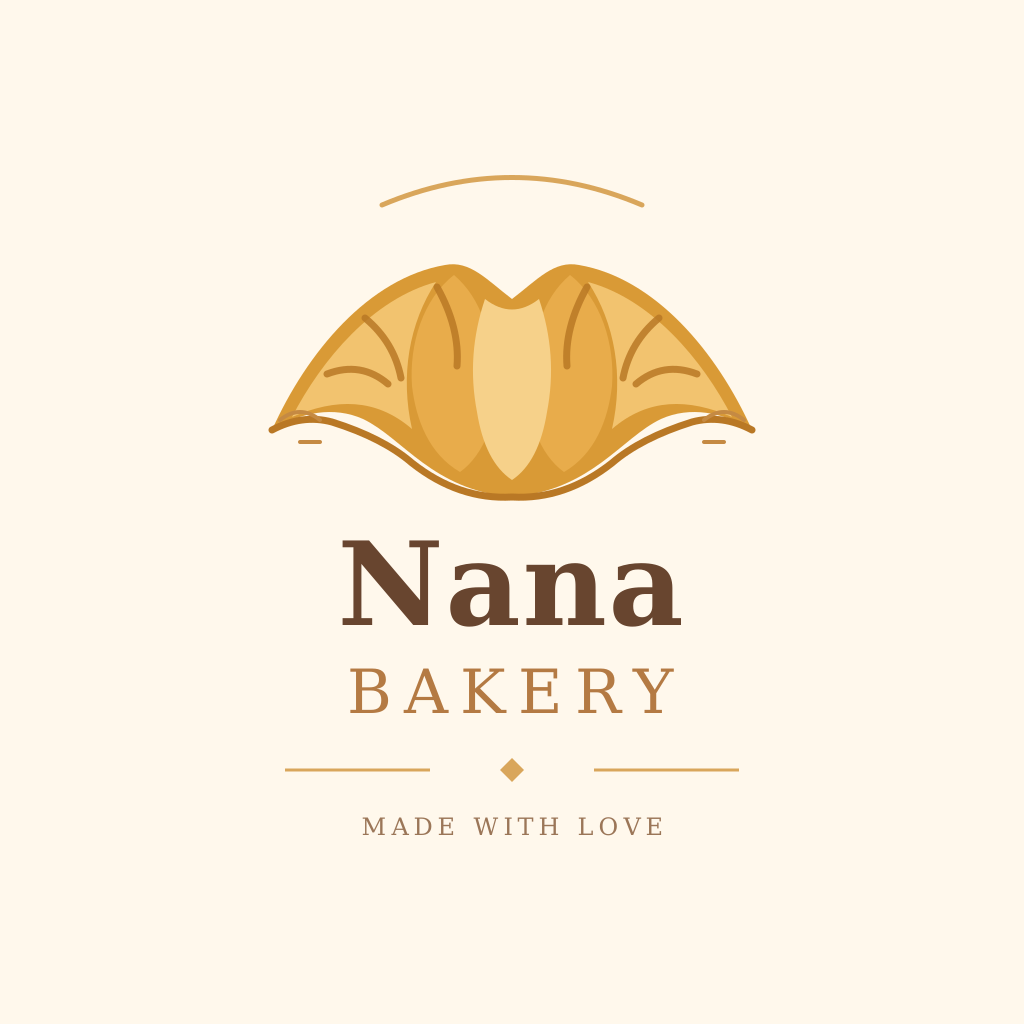
An SVG logo
Flare · SVGPrompt: A flat vector logo for a bakery called "Nana Bakery": a golden croissant above the name, warm brown and cream colors, simple shapes.
Made on November 17, 2026 with the exact prompts shown. Images were only resized for this page, and the GIF was saved as an animated WebP. Results can differ each time you generate.
What's new in GPT Image 2.6
This version updates GPT Image 2.5. Here is what you can do with it now.
Looping GIFs
Turn a prompt or a photo into a short animation that plays on repeat. Pick GIF under Output in the tool. Each GIF costs 1 credit.
SVG files and transparent PNGs
Make a logo or icon as an SVG that stays sharp at any size, or a PNG with no background for stickers. SVG costs 1 credit.
Steadier photo edits
Sunburst keeps more of your original photo when you change one part, like the background or an outfit. Faces, layouts, and small details are less likely to drift.
Same price as 2.5 here
For still images, GPT Image 2.6 costs the same credits as GPT Image 2.5 at the same size and quality. You can still pick 2.5 in the model menu.
See the GPT Image 2.5 pageGPT Image 2.6 Flare vs Sunburst: which one should you use?
Both versions can make and edit images. Switch between them in the model menu above.
GPT Image 2.6 Flare
Best for quick ideas
Flare is the faster of the two. Use it for social posts, poster ideas, thumbnails, and first drafts. This page starts with Flare selected.
GPT Image 2.6 Sunburst
Best for careful edits
Sunburst takes a little longer and pays more attention to detail. Use it to fix a product photo, swap a background, or keep a face the same across edits.
Make your first image in three steps
Start with a clear idea. You can change one detail and try again.
1. Describe your idea
Write what should be in the picture, the style you like, and the background. To edit a photo, switch to image-to-image, upload it, and say what to keep and what to change.
2. Pick your settings
Choose Flare or Sunburst, then a shape, size, and quality. Medium is a good place to start. Check the credit cost before you generate.
3. Create and check
Sign in and generate. Look closely at words, faces, and small details, then download your image or tweak the prompt and try again.
Choose how much detail you need
Start with Medium while you try ideas. Switch to High when the picture is close to what you want. Higher settings take longer and use more credits.
- Low
- Good for a quick first draft.
- Medium
- Our default for everyday images and edits.
- High
- Use it to polish a result you already like.
You can choose 1K, 2K, or 4K in the tool. Size and quality are separate settings. Flare and Sunburst cost the same credits at the same settings, and the total is shown before each generation.
GPT Image 2.6 questions, answered
The basics before you start.
Can I use GPT Image 2.6 for free?
Yes, you can try it for free. New accounts get free starter credits, and you need to sign in to generate. Each image uses credits, so this is a free trial, not unlimited free use. The tool shows the cost before you start.
What is the difference between GPT Image 2.6 and 2.5?
Version 2.6 is the newer one. OpenAI says Sunburst now keeps photo edits more consistent, so the parts you didn't ask to change are more likely to stay the same. On our site both cost the same credits, and GPT Image 2.5 is still in the model menu if you prefer it.
How much does GPT Image 2.6 cost?
A still image at 1K costs 1 credit on Low or Medium quality, and High costs 2. Bigger sizes cost a bit more, and the tool shows the total before you start. A GIF or an SVG costs 1 credit.
Should I pick Flare or Sunburst?
Pick Flare when you want quick drafts and lots of ideas. Pick Sunburst when you are editing a photo and need the details to stay right. Both accept text and reference images.
Can GPT Image 2.6 edit my own photo?
Yes. Choose image-to-image and upload your photo. Say what to change, like a new background or different colors, and also say what should stay the same. Always check the result before you use it.
Can GPT Image 2.6 make GIFs or SVG files?
Yes. In the tool, open the settings and pick GIF or SVG under Output. A GIF is a short loop of 9 frames at 1K, and the model picks its shape. An SVG is a vector file, so it is made from a text prompt only. Each costs 1 credit.
Can I get a transparent background?
Yes. Keep Output on Image and turn on Transparent background. You get a PNG with no background, which works well for stickers, logos, and product cutouts. It costs the same as a normal image.
Can it put words inside an image?
Yes. Put the exact words in quotes and say where they should go. The model handles short titles and labels well, but check the spelling before you share or print.
Which quality should I use?
Start with Medium. Use Low for rough drafts, and try High when you need more detail. Higher quality takes longer and costs more credits.
Can I use it on my phone?
Yes. Open this page in your phone's browser and sign in. You can write a prompt, upload a photo, change the settings, and download the finished image.
What will you make with GPT Image 2.6?
Start with one clear idea. Use your free starter credits to try it, then fine-tune the details you care about.