Loading page…

Upload a photo. Describe what you want to change. Let AI make the edit.
New accounts get 3 free credits to try it out. Sign in to run an edit.
An AI photo editor changes a photo you already have. You upload a picture and type a prompt, which is text that says what to change. The AI then makes a new version. Some people call this an AI image editor with prompt control.
You begin with your own picture, not a blank page.
No layers or sliders. Just type what you want, like texting a friend.
The AI makes a new image. Your original file stays the same.
Each example makes one change and says what stays the same. Put both parts in your prompt for cleaner results.
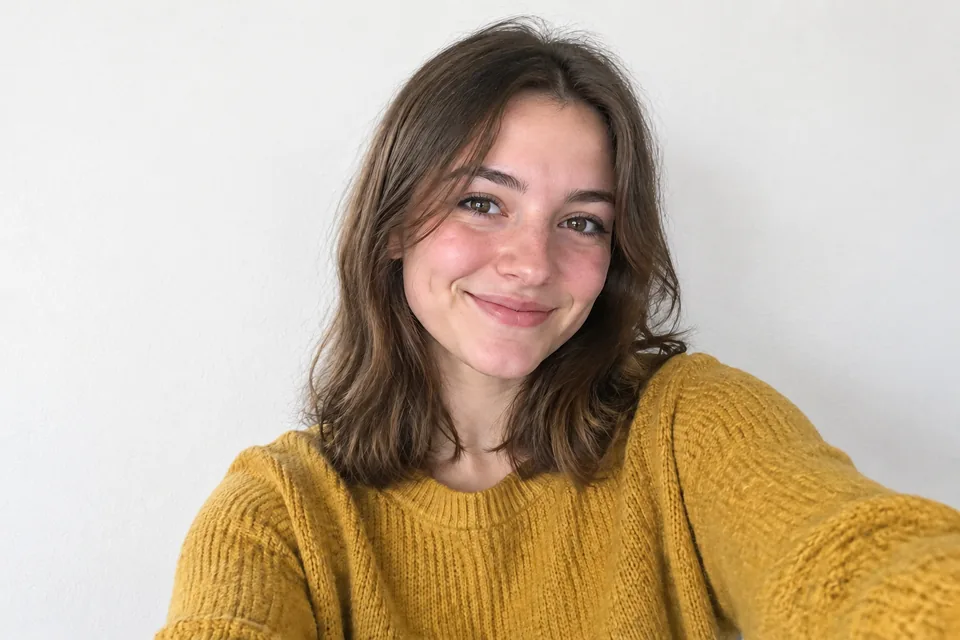
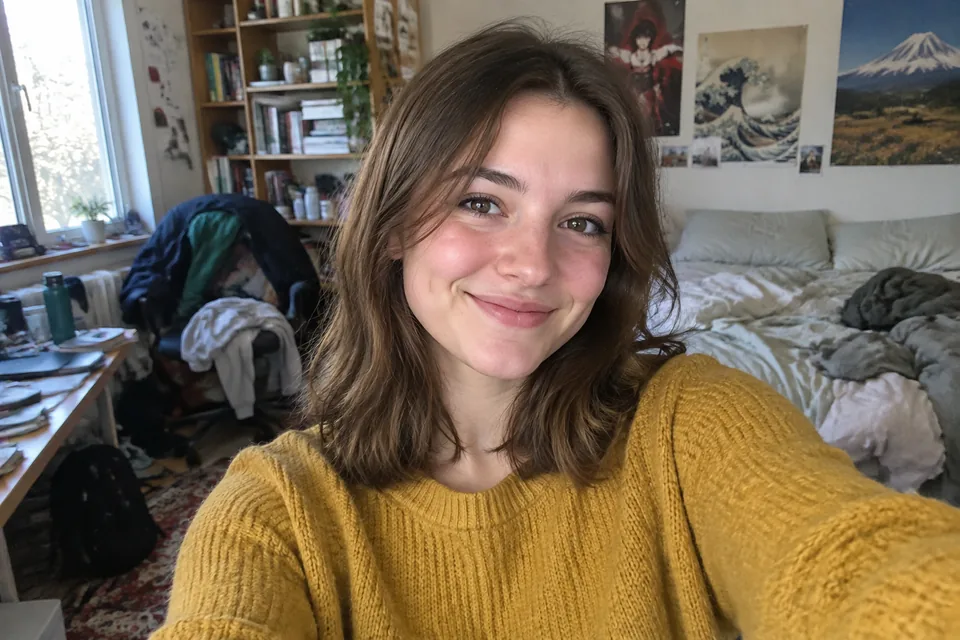 BeforeAfter
Your prompt
Change the background to a plain white wall. Keep my face, hair, and clothes the same.
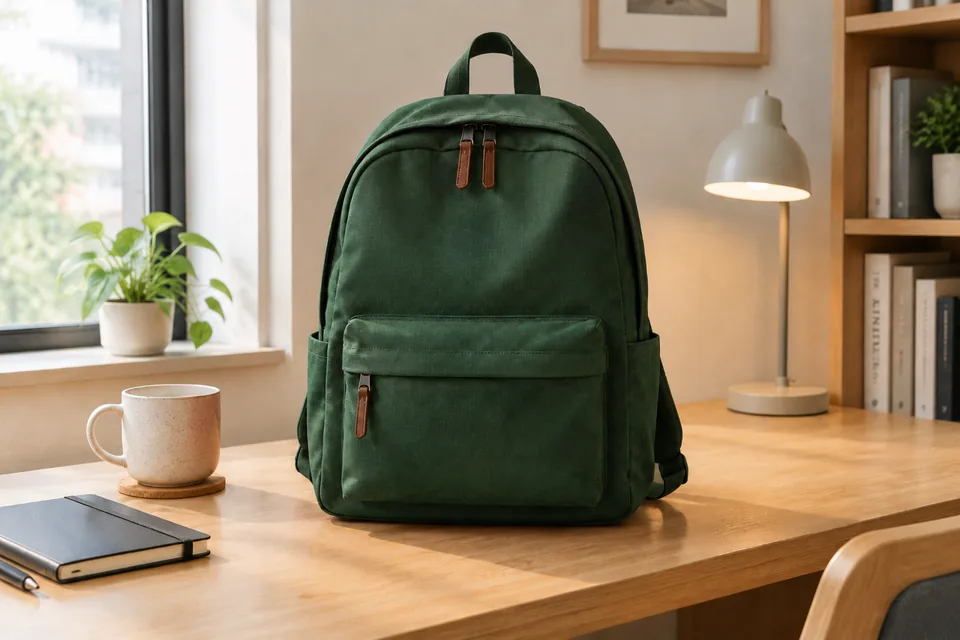
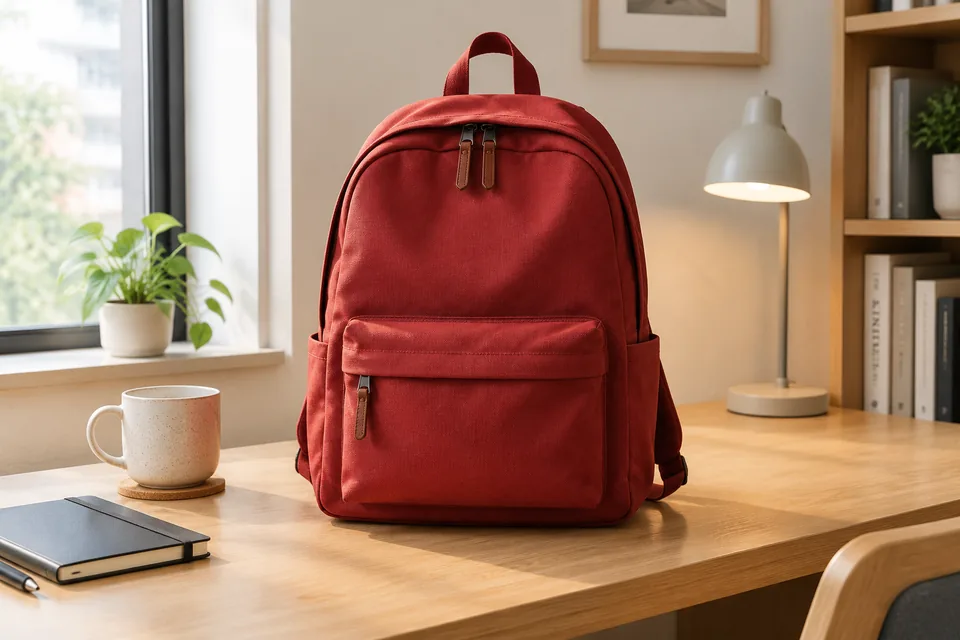 BeforeAfter
Your prompt
Make the backpack dark green. Keep the desk, the light, and everything else the same.
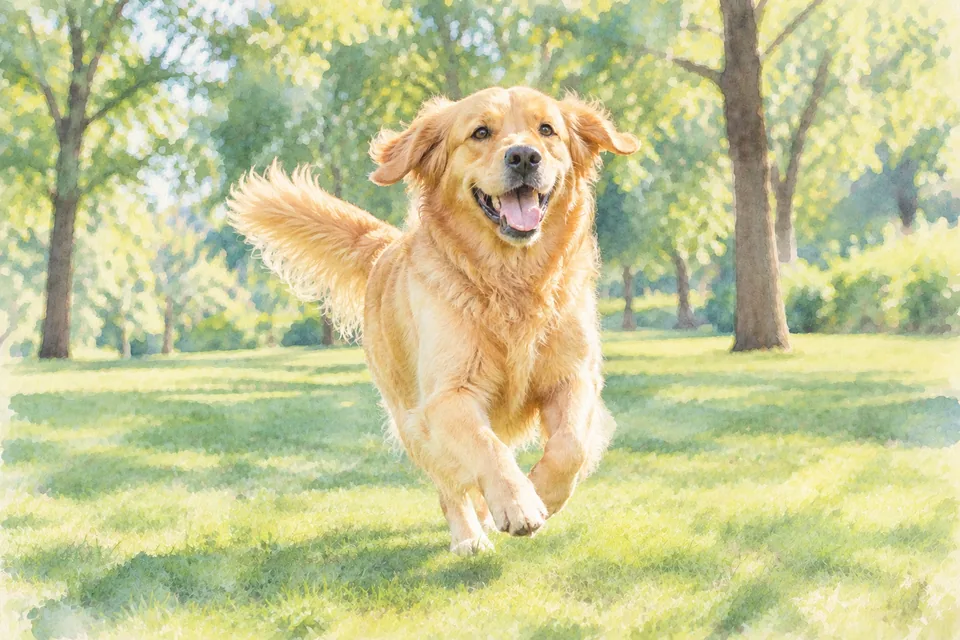
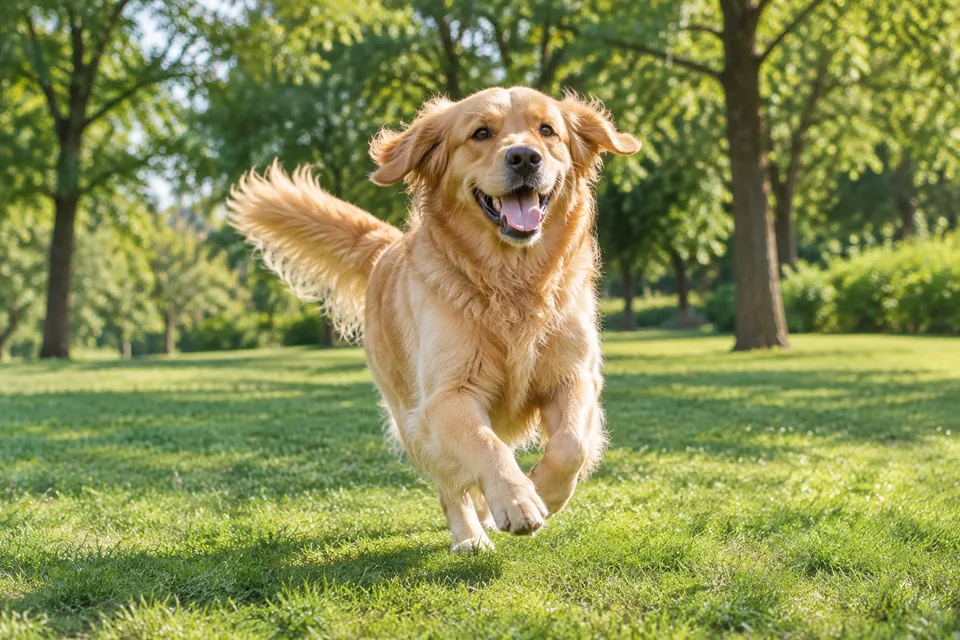 BeforeAfter
Your prompt
Turn this photo into a soft watercolor painting. Keep the dog's pose and the trees in place.
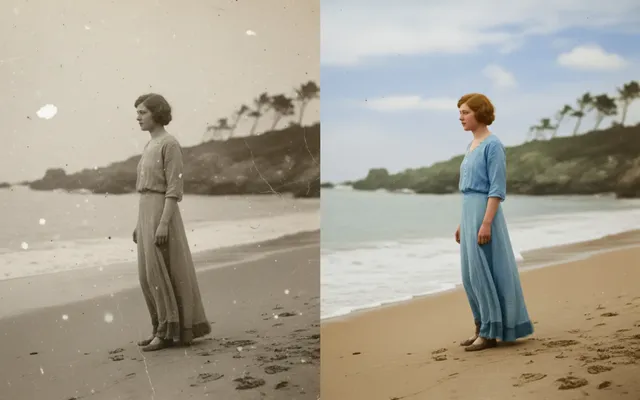
The sample photos and edits were made with GPT Image 2 using the prompts shown. Results can vary each time.
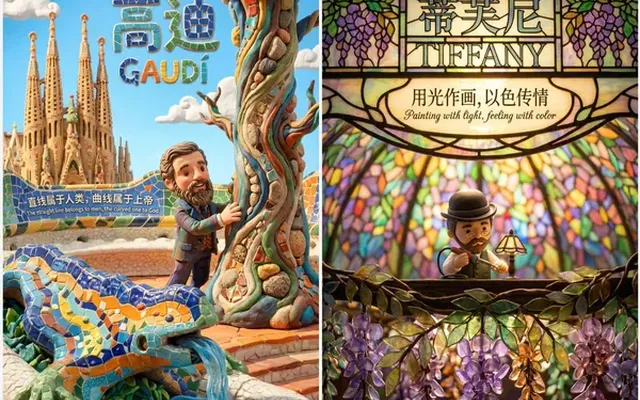
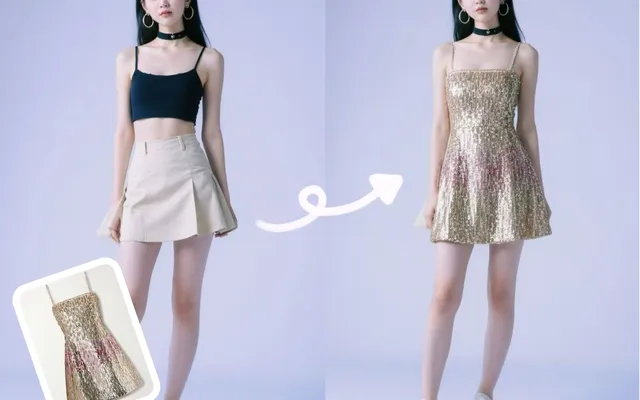
@HustleXR made these on X from uploaded portraits with Google's Nano Banana models. We did not test them, so your results here will differ.
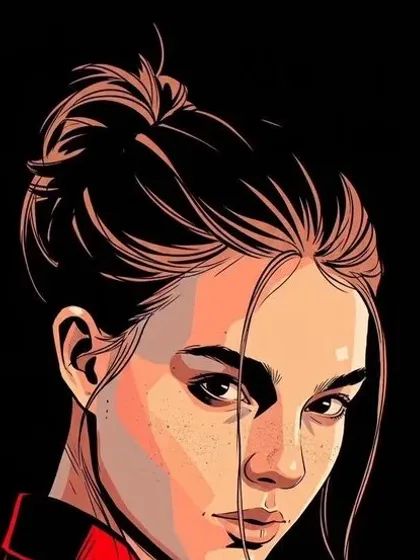
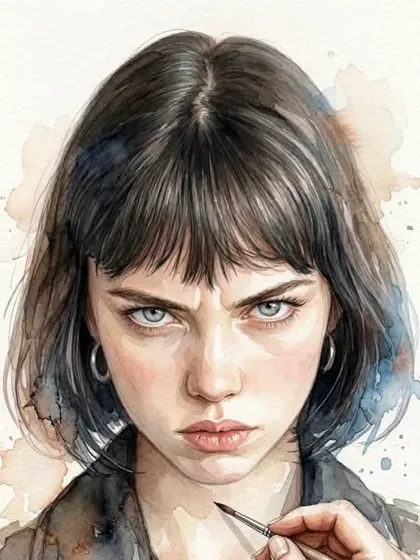
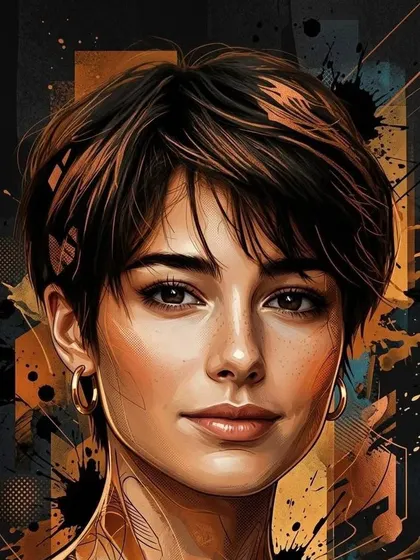
From shop listings to trip photos, a short prompt can save a lot of time. Here are six common ways to use it.
Swap a cluttered table for a clean, plain background so product photos look ready for your store.
Give a photo a new color theme or art style so it fits the look of your feed.
Hide a messy room behind the kids or brighten a dull color in a family photo.
Turn a project photo into a poster-style or cartoon picture for a class presentation.
Refresh a menu or promo photo with seasonal colors, without booking a new photo shoot.
Swap a gray sky for a sunny one, or turn a trip photo into a painting to share.
You can add a photo before you sign in, but you need an account to run the edit.
Click the upload box or drop in a JPG, PNG, or WebP image.
Write one clear sentence about what to change. Then say what should stay the same.
Press Generate, then save the result you like. Not right? Change your words and try again.
The AI follows your words closely, so short and specific prompts work best.
Say “the blue car” or “the wall behind me,” not just “it.”
Long lists can confuse the AI. Make one edit, check it, then ask for the next.
Add a line like “Keep the person and their clothes the same.”
“Light blue” or “a sunny beach” is clearer than “nicer.”
Vague prompt
Make it look better.
Clear prompt
Change the wall to light blue. Keep the person and their clothes the same.
Use the AI photo editor to change a photo you already have. Other tools fit other jobs.
Quick answers about how to edit photos with text.
It can change a background, change the color of an object, or turn a photo into a new art style. Clear, bright photos work best.
New accounts get 3 free credits. You need to sign in to edit. Each edit costs credits based on the model and image size, and you see the cost before you press Generate.
The AI photo editor changes a photo you upload. The AI Image Generator makes a new picture from words. Switch between Image to Image and Text to Image at the top of the tool.
You can pick GPT Image 2.5, GPT Image 2, Nano Banana Pro, Nano Banana 2, or Nano Banana. Midjourney only works from text here.
Public Visibility is on by default, so results may show in the community gallery. Turn it off before you press Generate to keep an edit private.
AI edits are not perfect. Say what to keep, change one thing at a time, and try again. A sharp, well-lit photo also helps.
Upload a picture, type one clear change, and see what the AI makes.